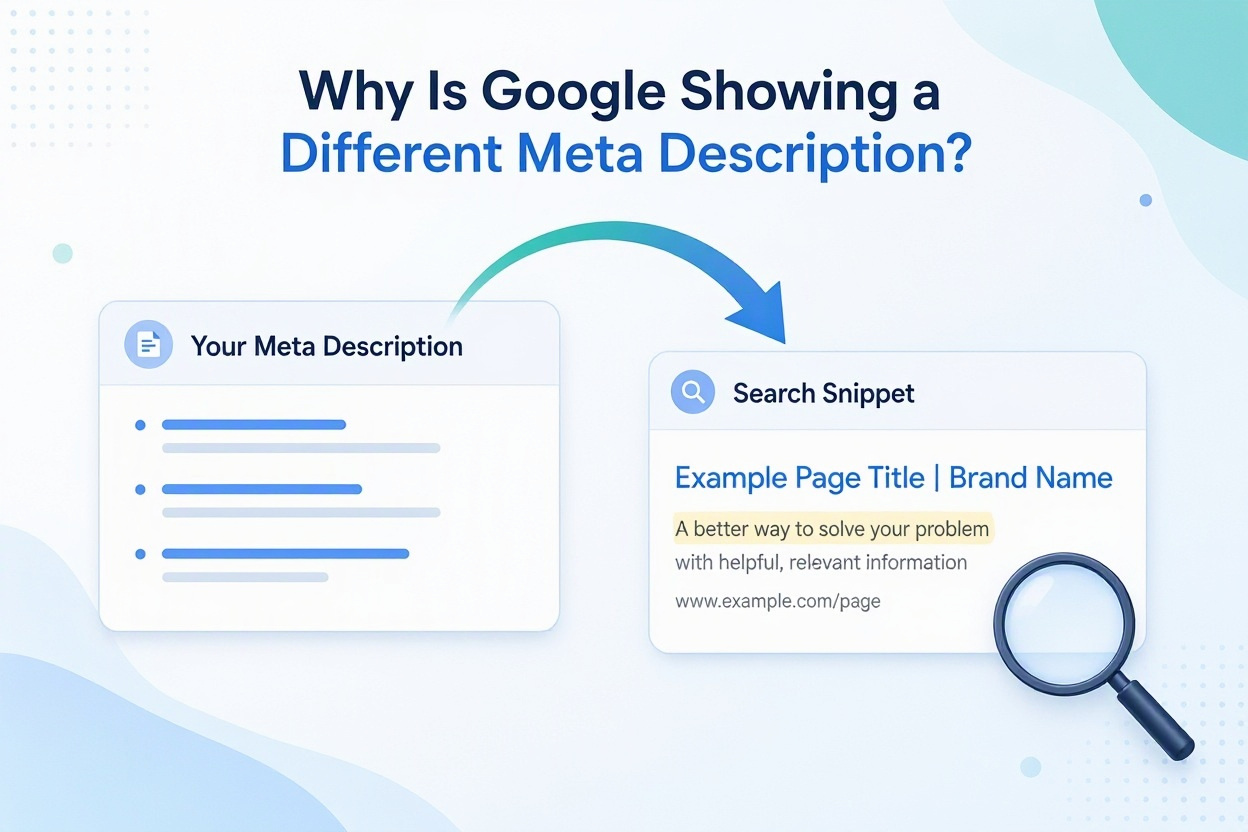
Sometimes Google displays a sentence from the middle of your article. Other times, it shows an old description or text you never intended to use as a preview.
Google shows a different meta description because its search snippets are generated automatically, primarily from page content. It may use your meta description when that provides a better summary, but it does not have to display it. The same page can have different snippets for different searches.
Before changing your SEO settings again, identify what is happening: a normal snippet variation, an outdated indexed page, or a technical publishing problem.
Meta Description vs. Search Snippet: What Is the Difference?
A meta description is a summary stored in your page’s HTML. For example:```html
<meta name="description" content="Learn how to check your website's meta description, identify publishing problems, and troubleshoot outdated search snippets.">
```
The search snippet is the descriptive text users actually see beneath a result in Google.
These are related, but they are not interchangeable. Updating your meta description changes the suggestion you provide; it does not directly edit the search result.
Why Google Might Show Different Text
1. The Search Query Calls for a More Specific Answer
A page may answer several related questions. Its general description cannot highlight every answer at once.Imagine an article about adding users to Google Search Console. It covers account access, permission levels, and removing users.
Someone searching for “Google Search Console permission levels” may benefit more from a sentence about permissions than a general introduction to adding users.
This is an illustrative example of how a query-specific snippet can be useful, even when the original description is accurate.
2. Your Description Is Too Generic
Consider this description:> Welcome to our website. Read useful tips, guides, and the latest information.
It could describe almost any blog.
A more useful version would be:> Learn how to add a user to Google Search Console, choose an access level, and remove access when it is no longer needed.
Google recommends descriptions that are specific to each page. Avoid repeating the same summary across unrelated articles.
When reviewing your own description, ask: could a reader identify the page’s subject without seeing its title? If the answer is no, make the wording more concrete.
3. Your Latest Changes Have Not Reached Google’s Index
The page you see in your browser may be newer than the version Google has indexed.Use URL Inspection in Google Search Console to check the indexed information and last crawl date. Compare that with when you published the update. A live test checks the current page; it does not mean the indexed version has already changed.
For troubleshooting, record both dates instead of repeatedly rewriting the description. Otherwise, you may change the page several times before Google processes the first revision.
4. Your CMS Is Publishing Something Different
The text in an admin field is only one part of the process. Your website template still needs to output that text correctly.Possible implementation problems to investigate include:
- A global description overriding the article’s description.
- An unsaved or unpublished edit.
- Cached HTML serving an older version.
- Multiple components inserting description tags.
- A description saved in a social-sharing field instead of the standard meta description field.
These are diagnostic possibilities, not proof of why Google selected a particular snippet. Check the published page before assuming the search engine is ignoring a correctly implemented update.
5. You Are Looking at a Different URL Version
An article might be accessible through more than one address, such as an old slug, a redirected URL, or a URL with tracking parameters.Compare the result’s destination with the exact page you edited. In Search Console, the indexed URL Inspection report also shows the Google-selected canonical. The live test cannot predict which URL Google will select as canonical.
This check helps avoid troubleshooting the metadata of one URL while observing another.
6. The Description Is Being Shortened
A shortened description is not necessarily a rewritten description.If the opening words match your meta description but the ending is missing, you may be seeing truncation. Google does not specify a fixed meta description character limit; snippets are shortened as needed, typically to fit the device width.
As an editorial practice, put the page’s main value early in the description. Do not leave the essential information until the final phrase.
How to Troubleshoot a Different Meta Description
Step 1: Record the Result You Are Seeing
Before editing anything, save:- The search query.
- The result’s URL.
- The displayed description.
- The date.
- Whether you searched on mobile or desktop.
Step 2: Inspect the Published HTML
Open the page, view its source, and search for:```html
name="description"
```
Check that the description contains your intended wording and appears in the document’s `<head>`.
Also look for separate social metadata:
```html
<meta property="og:description" content="A description for social sharing.">
```
Do not confuse this field with the standard meta description.
If your website uses JavaScript to manage metadata, inspect the rendered document as well. Source HTML and the rendered page can differ.
Step 3: Compare the Description With the Actual Article
Read the description and the opening section together.For example, a description promising a “step-by-step troubleshooting guide” should lead to a page containing practical troubleshooting steps. If the article only defines a meta description, the promise is too broad.
A useful editing exercise is to write down:
- What problem brings someone to this page?
- What will they learn or accomplish?
- What does this page actually provide?
Step 4: Review Text That Should Not Appear in Snippets
If unwanted text comes from a particular page element, Google supports `data-nosnippet` on `div`, `span`, and `section` elements.For example:
```html
<div data-nosnippet>
Subscribe to our newsletter for website updates.
</div>
```
This can exclude that text from snippets. It does not force Google to use your meta description.
Similarly, `nosnippet` prevents a text snippet, while `max-snippet` limits its maximum length. These controls restrict presentation; they do not specify your preferred wording. Google must be able to crawl the page to read the instructions.
Use these settings for a specific purpose. Hiding all article text from snippets simply to push your preferred description is not a useful first troubleshooting step.
Step 5: Request Indexing After Fixing the Page
Once the published page is correct, inspect its URL in Search Console and request indexing.Google says crawling may take a few days to a few weeks. A request does not guarantee immediate indexing, and submitting the same URL repeatedly will not make crawling faster.
Keep a dated record of the update and allow time for processing before drawing conclusions.
A Practical Meta Description Example
Suppose you publish a guide explaining how to investigate unexpected Google snippets.Weak description: > Meta description SEO Google tips and tricks. Learn everything about descriptions and improve your website today.
More useful description:> Google showing a different meta description? Check your published HTML, inspect the indexed page, and troubleshoot outdated or unexpected snippets.
The second version names the reader’s problem and describes the work the guide helps them do. It also avoids promising results the article cannot guarantee.
Treat this as a writing approach, not a formula that guarantees Google will display your text.
Common Mistakes to Avoid
Rewriting the Description Every Day
Frequent edits make it harder to know which version Google has processed. Fix a clear problem, note the date, and evaluate the result after Google revisits the page.Checking Only an SEO Plugin Preview
A preview can help you review wording and layout. Your investigation should still include the published HTML and the actual search result.Assuming Every Different Snippet Is Harmful
Read the displayed text before deciding it needs fixing. Does it describe the page accurately? Does it answer the searcher’s question? Is it misleading or outdated?An accurate excerpt deserves a different response from an expired offer or a broken fragment of interface text.
Treating One Observation as a Performance Test
If you want to assess the effect of a description update, record the change and compare similar queries, devices, and time periods.Changes in clicks alone cannot isolate the description’s effect. Search demand, ranking position, and other page changes can complicate the comparison.
Frequently Asked Questions
Q1. Can I Make Google Display My Exact Meta Description?
There is no guaranteed way to require that exact wording. Google determines search snippets algorithmically.Q2. Why Does Google Still Show My Old Description?
Start by checking whether the new description is live, whether cached HTML is still old, and whether Google has crawled the page since the edit. These checks help distinguish a publishing issue from a processing delay.Q3. Should I Remove My Meta Description If Google Uses Something Else?
A different snippet alone is not a good reason to remove an accurate description. Investigate whether anything is actually wrong before making another change.Q4. Does a Different Description Mean My Website Has Been Penalized?
A different snippet, by itself, does not establish a penalty. It is not enough evidence to diagnose a ranking or policy problem.What to Do Next
Start with the published page. Confirm that the intended description is present, compare the indexed and live versions, and check the exact URL appearing in search.If the implementation is correct and the displayed snippet is accurate, there may be nothing to repair. Focus your next edit on a specific issue you can identify, such as outdated information, vague wording, or an incorrect HTML tag.