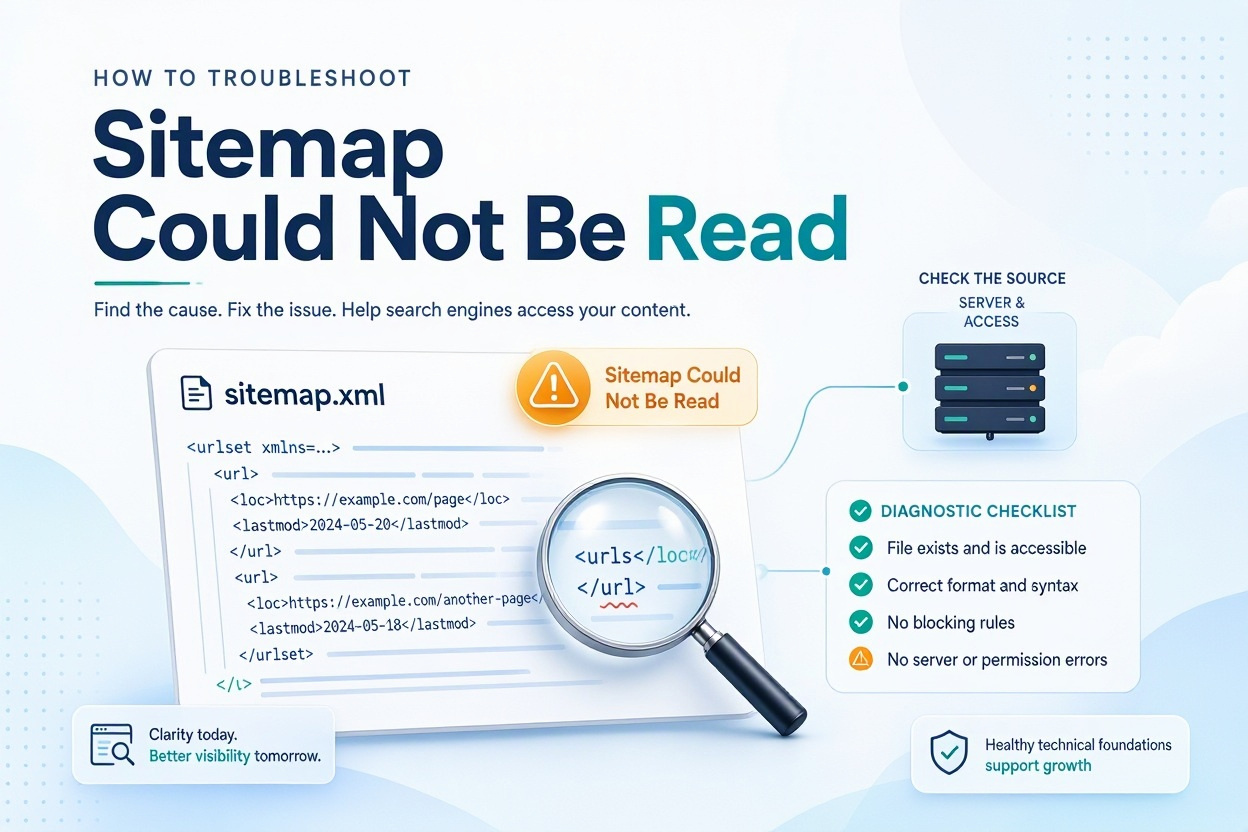
You submit your sitemap to Google Search Console, expecting Google to process your website’s URLs. Instead, the report displays “Sitemap could not be read.”
Opening the sitemap in your browser might show a normal-looking page, making the error even more confusing.
Start by separating two problems: Google being unable to retrieve the file, and Google retrieving a file that contains errors.
Google’s Sitemaps report distinguishes “Couldn’t fetch” from a sitemap that was fetched but has processing errors. Open the affected sitemap and expand its error details before changing anything.
This guide explains how to investigate the URL, response, access settings, and XML output in a useful order.
1. Copy the Exact Submitted Sitemap URL
Open Search Console → Sitemaps, select the affected entry, and copy its full URL.
Do not assume your sitemap uses a particular filename. Depending on the website, it might be located at:
https://shamim.in/sitemap.xmlor:
https://example.com/sitemap_index.xmlYour CMS may use another address entirely.
Compare the submitted URL with the actual sitemap location. Check for:
A spelling mistake.
The wrong domain or subdomain.
An old preview-domain address.
An incorrect folder.
A filename that changed after a CMS update.
For example, if a website moved from a preview subdomain to its main domain, an old sitemap submission may still point to the retired location.
Fix the address only after confirming where the working sitemap is published.
2. Read the Detailed Error
The report’s headline is a starting point, not a complete diagnosis.
Google lists possible fetch problems including an incorrect URL, a robots.txt restriction, server unavailability, and other conditions. Some failures may be temporary.
Use the details to choose your next check:
| Finding | What to investigate |
|---|---|
| Sitemap URL does not exist | Filename, route, or submitted address |
| Access is denied | Authentication, firewall, or permissions |
| Server fails to respond reliably | Hosting or sitemap-generation errors |
| File loads but contains HTML | Redirects, challenge pages, or application routing |
| XML processing error | Invalid markup, escaping, or incomplete output |
Do not treat every sitemap error as an XML problem. Repairing tags will not resolve a URL that returns an access-denied response.
3. Open the Sitemap Without an Active Login
Open the exact URL in a private browser window.
The sitemap should be publicly accessible. It should not depend on your admin session, preview permissions, or a browser cookie.
Check whether you receive the sitemap itself or something else, such as:
A login page.
A security challenge.
Your homepage.
A maintenance message.
A custom error page.
A normal-looking browser screen does not necessarily mean the correct file was delivered.
For example, a website may route every unknown path to its homepage. In that case, /sitemap.xml could return a successful response while delivering homepage HTML instead of a sitemap.
4. Inspect the HTTP Response and Body
Use browser developer tools to inspect the sitemap request. Check both the status code and response body.
A successful status alone is not enough. The response must contain the intended sitemap.
For a technical check, download the response and headers:
curl -sS -D sitemap-headers.txt \ -o sitemap-response.xml \ https://shamim.in/sitemap.xmlReplace the example address with your own.
This command deliberately does not follow redirects automatically. If the response redirects, inspect its destination before testing the final URL.
Review:
The HTTP status.
Any Location header.
The response’s content type.
The beginning and end of the downloaded body.
For XML output, an appropriate content type is:
Content-Type: application/xml; charset=UTF-8However, changing the header does not convert an HTML page into valid XML.
If the body starts with a login form, a security message, or application HTML, investigate why that content is being served at the sitemap URL.
5. Check Google’s Ability to Fetch It
Google recommends inspecting the sitemap URL with URL Inspection and running a live test. In the availability details, check whether crawling is allowed and the page fetch succeeds.
Focus on retrieval. A sitemap does not need to appear as an indexed search result to perform its job.
Also review robots.txt for a rule blocking the sitemap path. Google respects robots.txt when fetching sitemaps.
If browser access succeeds but the test fails, compare the failed request with hosting or security logs where available.
Investigate the specific restriction. Avoid disabling your website’s entire firewall just to test one endpoint.
6. Validate the XML Structure
Once retrieval works, check the file itself.
A simple XML sitemap looks like this:
<?xml version="1.0" encoding="UTF-8"?><urlset xmlns="http://www.sitemaps.org/schemas/sitemap/0.9">
<url>
<loc> https://shamim.in/ </loc>
</url>
<url>
<loc>https://shamim.in/blog/discovered-currently-not-indexed-what-to-check</loc>
</url>
</urlset>
The sitemap protocol requires the appropriate namespace, a <url> entry for each page, and a <loc> containing its URL. XML sitemap files use UTF-8 encoding.
Look for:
Missing closing tags.
Incorrect nesting.
A missing namespace.
Empty <loc> elements.
Truncated output.
Unexpected text inserted before or inside the XML.
If an XML declaration is present, do not place debug text or other output before it.
For a custom CMS, inspect the generated response rather than only reviewing the template that produces it. Runtime output can differ from the intended code.
7. Escape Special Characters Correctly
An unescaped ampersand inside a URL can break XML.
Incorrect:
<loc>https:// example.com/products?category=books&sort=price</loc>Correct XML encoding:
<loc>https://example.com/products?category=books&sort=price</loc>The sitemap protocol requires entity escaping for XML data. This encoding does not mean the destination URL literally contains the text amp;; the XML parser interprets the entity.
Before including parameter URLs, also decide whether they are versions you want indexed. Valid XML and appropriate URL selection are separate checks.
In a dynamic sitemap, fix escaping in the generator so future entries are handled correctly.
8. Check Child Sitemaps When Using a Sitemap Index
A sitemap index lists other sitemap files rather than individual pages.
For example:
<?xml version="1.0" encoding="UTF-8"?><sitemapindex xmlns="http://www.sitemaps.org/schemas/sitemap/0.9">
<sitemap>
<loc>https://example.com/posts-sitemap.xml</loc>
</sitemap>
<sitemap>
<loc>https://example.com/pages-sitemap.xml</loc>
</sitemap>
</sitemapindex>
This structure is defined by the sitemap protocol.
Open each referenced file separately.
The parent index may load correctly while a child sitemap returns an error. In that situation, correcting the parent’s formatting will not repair the failing child endpoint.
Record which file fails and whether its problem involves retrieval or parsing.
9. Review Sitemap Size and URL Format
Google limits a single sitemap to 50,000 URLs or 50 MB uncompressed, whichever limit is reached first. Larger collections should be split into multiple files, which can be grouped with a sitemap index.
For a small blog, these limits are unlikely to be the first problem to investigate.
Also check that page addresses are complete URLs:
<loc> https://example.com/blog/example-article/</loc>rather than relative paths:
<loc>/blog/example-article/</loc>Google recommends fully qualified URLs and listing the canonical versions you want in search.
10. Investigate Dynamic Generation and Caching
If the sitemap is generated by a CMS, investigate whether it sometimes produces different output.
Useful diagnostic questions include:
Does the generator fail when a particular post is included?
Are PHP warnings appearing in the response?
Does a database error interrupt generation?
Is a cached error page being served?
Does the sitemap stop halfway through?
Did the issue begin after a deployment?
For example, one article slug containing an improperly escaped character could cause a previously valid sitemap to become malformed.
Fix the underlying generator. Then clear the affected cache if necessary and fetch the public URL again.
Testing a local file is not enough if visitors still receive an older response.
Does an XSLT Browser Warning Mean the Sitemap Is Broken?
Not by itself.
Some XML sitemaps use an XSLT stylesheet to create a readable table in the browser. Chrome’s XSLT deprecation concerns that transformation feature; its documentation distinguishes removing XSLT from removing XML support.
A browser-display warning therefore does not establish that the underlying sitemap is unreadable by Google.
Check the raw XML response and Search Console’s actual result separately. Updating or removing a presentation stylesheet may change how the sitemap looks, but it will not repair an unrelated server or XML-generation error.
After Fixing the Problem
Fetch the exact public URL again and confirm that it returns the corrected file.
Then resubmit the sitemap in Search Console and review its processing status. Google recommends fixing the reported issue and resubmitting when a sitemap cannot be read.
Keep a short record:
| Item | What to record |
|---|---|
| Sitemap URL | Exact submitted address |
| Original problem | Fetch failure, wrong response, or XML error |
| Correction | The specific change made |
| Verification | Public response and validation result |
| Follow-up | Search Console status after processing |
Avoid repeatedly resubmitting an unchanged, failing file.
Frequently Asked Questions
Q1. My Sitemap Opens in a Browser. Why Can Google Still Fail?
Your browser may receive a different response because of a session, cached content, or access rules. Inspect the response and Google’s live fetch result instead of relying only on visual appearance.
Q2. Does “Success” Mean All My Pages Are Indexed?
No. A sitemap helps search engines discover content, but it does not guarantee crawling or indexing of every listed page.
Q3. Do I Need an XML Sitemap Specifically?
Google supports several sitemap formats, including XML, supported feeds, and plain-text URL lists. XML is common, but it is not the only supported option.
Q4. Should I Replace My Sitemap Plugin Immediately?
First identify the failure. A wrong submitted address, firewall restriction, or hosting problem may have nothing to do with the plugin.
Q5. Can My Pages Be Found Without a Sitemap?
Yes. Google can discover pages through links. A sitemap provides an additional discovery method, especially for sites where some content is difficult to reach through normal linking.
Verify the File Google Actually Receives
Begin with the submitted URL and detailed error. Confirm public access, inspect the response body, and validate the appropriate sitemap structure.
Once you identify the failing layer, correct it and test the public endpoint again. That gives you a clear basis for resubmission and follow-up.