A page URL changes, an article is removed, or someone pastes an incorrect address into a blog post. The website still looks normal until a reader clicks the affected link.
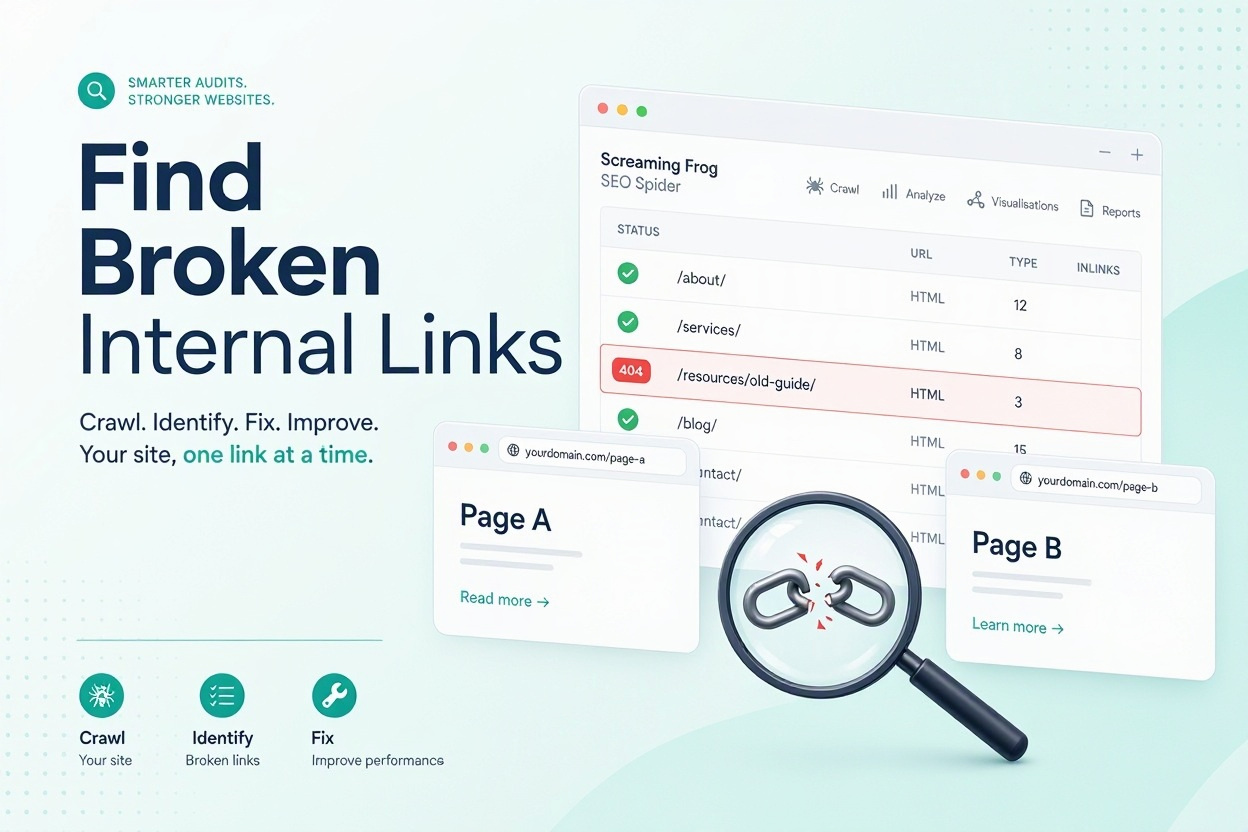
Manually checking every link becomes difficult as a website grows. Screaming Frog SEO Spider helps you locate failed destinations and identify where those links appear.
The basic workflow is to crawl your website, review client-error responses, select a broken internal URL, and inspect its Inlinks. This connects the failed destination to the source pages you need to edit.
The most useful outcome is an actionable repair list, not just a collection of 404 URLs.
What Is a Broken Internal Link?
An internal link connects one page on your website to another page within your site.
For example, a tutorial might link to:
https://example.com/blog/seo-checklist/If that destination no longer exists and returns a 404 response, the link leads readers to a missing page.
Keep these two addresses separate:
Source URL: The page containing the link.
Destination URL: The address the link points to.
You usually need to edit the source page, restore the destination, or arrange an appropriate replacement.
Before You Start
Install Screaming Frog SEO Spider and identify the website address you want to crawl.
The free version supports crawling up to 500 URLs. A paid licence removes that limit and provides additional features, including JavaScript rendering.
Do not assume that a website with fewer than 500 articles will always fit within the free limit. A crawl can encounter other URLs and resources.
For your audit notes, record:
The starting URL.
The crawl date.
Whether the crawl completed or reached a limit.
Any relevant exclusions or access restrictions.
These details help explain what the report actually covers.
1. Crawl Your Website
Select Mode → Spider, enter your website’s starting URL, and click Start.
For example:
https://shamim.in/
Allow the crawl to finish before preparing your final findings. Screaming Frog populates its results as it crawls, but later pages can reveal additional links to destinations already found.
If the crawl stops unusually early, investigate before assuming the website has only a few pages.
Check whether the starting address redirects, whether important sections are reachable, and whether access restrictions or crawl limits affected the run.
A partial crawl can still reveal useful problems, but it cannot support a claim that every internal link was checked.
2. Filter for Client Errors
Open the Response Codes tab and select Client Error (4xx).
This shows destinations returning client-error responses, including 404s. Check that the destinations you investigate belong to your website, since the results can also include external URLs.
Where your version provides separate internal and external filters, choose the internal results. Otherwise, review or filter the destination hostname in your export.
Do not treat every 4xx response as an identical problem.
| Response | Meaning | Initial investigation |
|---|---|---|
| 404 | Not found | Deleted page, incorrect URL, or broken route |
| 410 | Gone | Deliberately removed content |
| 403 | Forbidden | Permissions or access restrictions |
| 429 | Too many requests | Rate limiting |
| 5xx | Server error | Hosting or application failure |
HTTP status codes describe different response conditions. Google also treats server errors and rate-limiting responses differently from ordinary missing-page responses.
Review server errors separately rather than limiting the entire audit to 404s.
3. Find the Pages Containing Each Broken Link
Select a failed internal URL in the upper results panel. Then click In-links in the lower panel.
The From column identifies the source, while To identifies the destination. Anchor text can help you locate the link in the page.
For a bulk report containing both source and destination information, use Bulk Export → Response Codes → Client Error (4xx) Inlinks. Some versions place an internal/external submenu within this path.
For example:
| From | To | Anchor text |
|---|---|---|
| /blog/technical-seo-guide/ | /blog/old-seo-checklist/ | SEO checklist |
This tells you where to start editing: the technical SEO guide contains a link to the old checklist address.
Do not confuse an ordinary export of failed destinations with an in-links export. A destination-only report may leave out the pages where repairs are needed.
4. Check the Link Type and Position
In the In-links panel, use the Hyperlink type when you want to focus on normal page links.
Review the Link Position column where available. Screaming Frog classifies positions such as navigation, footer, sidebar, and content using the page’s HTML structure. These classifications can be imperfect, so verify the location on the actual page.
This distinction makes repairs easier.
A broken link in one article may require a single content edit. A broken footer link appearing across many pages may need one shared-template correction.
Also distinguish a broken hyperlink from a missing image, stylesheet, or script. Those resources may appear in error reports, but their fixes belong in different parts of the website.
5. Verify the Finding Before Editing
Open the source page and click the link yourself.
Check that:
You are looking at the published version.
The link points to the reported address.
The destination fails or shows the wrong content.
You understand what the reader expected to find.
If a URL works in your browser but fails in the crawl, investigate access differences, rate limits, or temporary failures.
Do not immediately remove a useful link because the crawler received a 403 or 429 response.
A successful response also deserves a content check. A page displaying “not found” while returning 200 will not appear as an ordinary 404 in the client-error filter. Status-code checks alone cannot identify every misleading destination.
6. Decide How to Fix Each Link
Use the page’s purpose to choose the repair.
| Situation | Appropriate action |
|---|---|
| The link contains a typo | Correct the destination in the source page |
| The article moved to a new address | Update the link to the new address |
| The destination was removed accidentally | Restore the intended page |
| The destination has a relevant permanent replacement | Update internal links and consider a permanent redirect |
| The content is gone with no suitable replacement | Remove the link or revise the surrounding text |
| The crawler encountered an access or server issue | Investigate the response before changing the link |
Avoid automatically redirecting every missing URL to the homepage.
Imagine a link promising a canonical-tag checklist. Sending readers to a general homepage does not deliver that checklist, even if the new destination loads successfully.
Update the Link Even When a Redirect Exists
When you control the source page, point its link directly to the intended current destination.
For example, change:
<a href="/blog/old-seo-checklist/">SEO checklist</a>to:
<a href="/blog/technical-seo-checklist/">SEO checklist</a>A redirect can still serve visitors arriving through older bookmarks or external links. Updating your own content keeps the website’s navigation current.
7. Prioritize Repairs by Reader Impact
Start with links that affect important journeys:
Main navigation.
Contact or service pages.
Frequently visited articles.
Download or registration links.
Shared footer or sidebar links.
Use the inlinks data to distinguish unique broken destinations from the number of places linking to them.
One missing destination linked from 80 pages is one destination problem with many occurrences. It is not necessarily 80 separate editorial tasks.
If those occurrences come from a shared template, fix the template and verify several affected pages afterward.
8. Keep a Practical Repair Sheet
The following is an illustrative example, not a real crawl report:
| Source page | Broken destination | Finding | Planned fix |
|---|---|---|---|
| /blog/seo-basics/ | /blog/meta-descripton/ | Misspelled slug | Correct the hyperlink |
| /services/ | /contact-old/ | Contact page moved | Link to /contact/ |
| /blog/tools/ | /downloads/checklist.pdf | Missing download | Restore the file or remove the promise |
| Shared footer | /about-us-old/ | Outdated navigation | Update the shared footer |
Add an owner and completion date if several people are working on the site.
Preserve the original URL and finding so that someone reviewing the repair understands what changed.
9. Crawl Again to Verify the Fixes
After publishing the changes, start a fresh crawl with comparable scope and settings.
Confirm that:
The source pages now contain the intended links.
The destinations load the correct content.
The relevant failures no longer appear.
Shared-template changes reached all affected areas.
Testing only the destination is incomplete. A replacement page may work perfectly while the source article still links to the wrong address.
If the old link remains, inspect the published page and any relevant cache. Make sure the correction reached the public website rather than only the editor preview.
What If Screaming Frog Finds No Broken Links?
A clean result applies to the URLs and links the crawler encountered under that run’s settings.
It may not include pages outside the crawl scope, inaccessible sections, or links that require rendering unavailable in your setup.
JavaScript rendering is a paid feature. If important navigation exists only after JavaScript runs, review whether your crawl setup can discover it.
Also remember that checking an isolated list of URLs does not automatically identify every source page linking to them. Finding the destination’s status and finding all its incoming links are separate tasks.
Frequently Asked Questions
Q1. Can I Find Broken Links With the Free Version?
Yes, within the free version’s 500-URL crawl limit. Larger audits or sites requiring advanced features may need a licence.
Q2. Are Redirects Broken Links?
Not necessarily. A redirect can lead to a useful, working page. Review its final destination and whether the internal link should be updated.
Q3. Why Does One Broken URL Have Many Inlinks?
Several pages or one shared navigation element may point to the same destination. Use the source and position information to identify the most efficient repair.
Q4. Does Fixing Broken Links Guarantee Better Rankings?
No. The immediate benefit is repairing navigation and helping readers reach the intended content. Do not promise a specific ranking increase from the number of links fixed.
Q5. How Often Should I Run This Check?
Choose a schedule that matches how frequently your website changes. Checks are particularly useful after URL changes, content removals, migrations, and navigation updates.
Finish With a Verified Repair
For each confirmed problem, identify the source, understand the intended destination, and